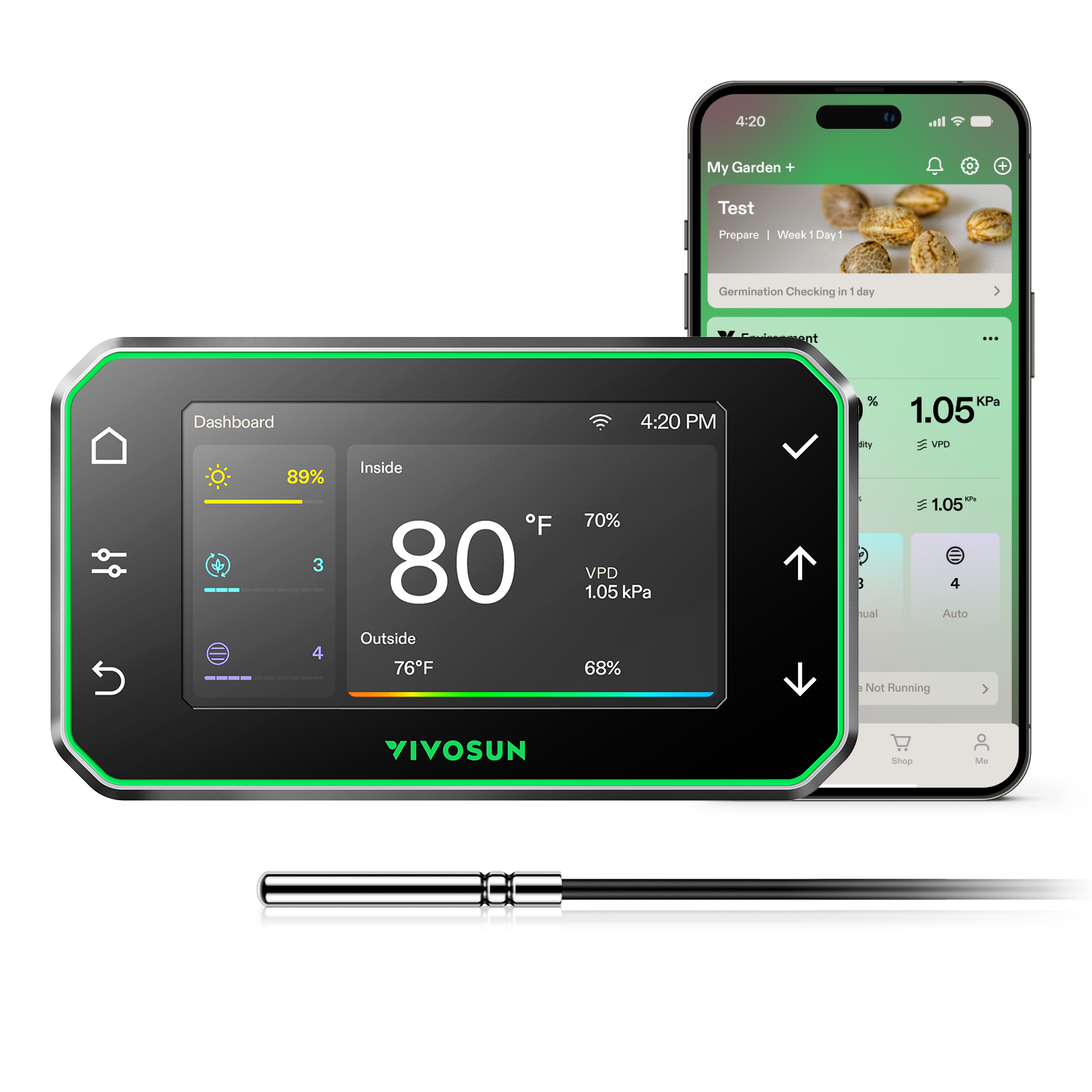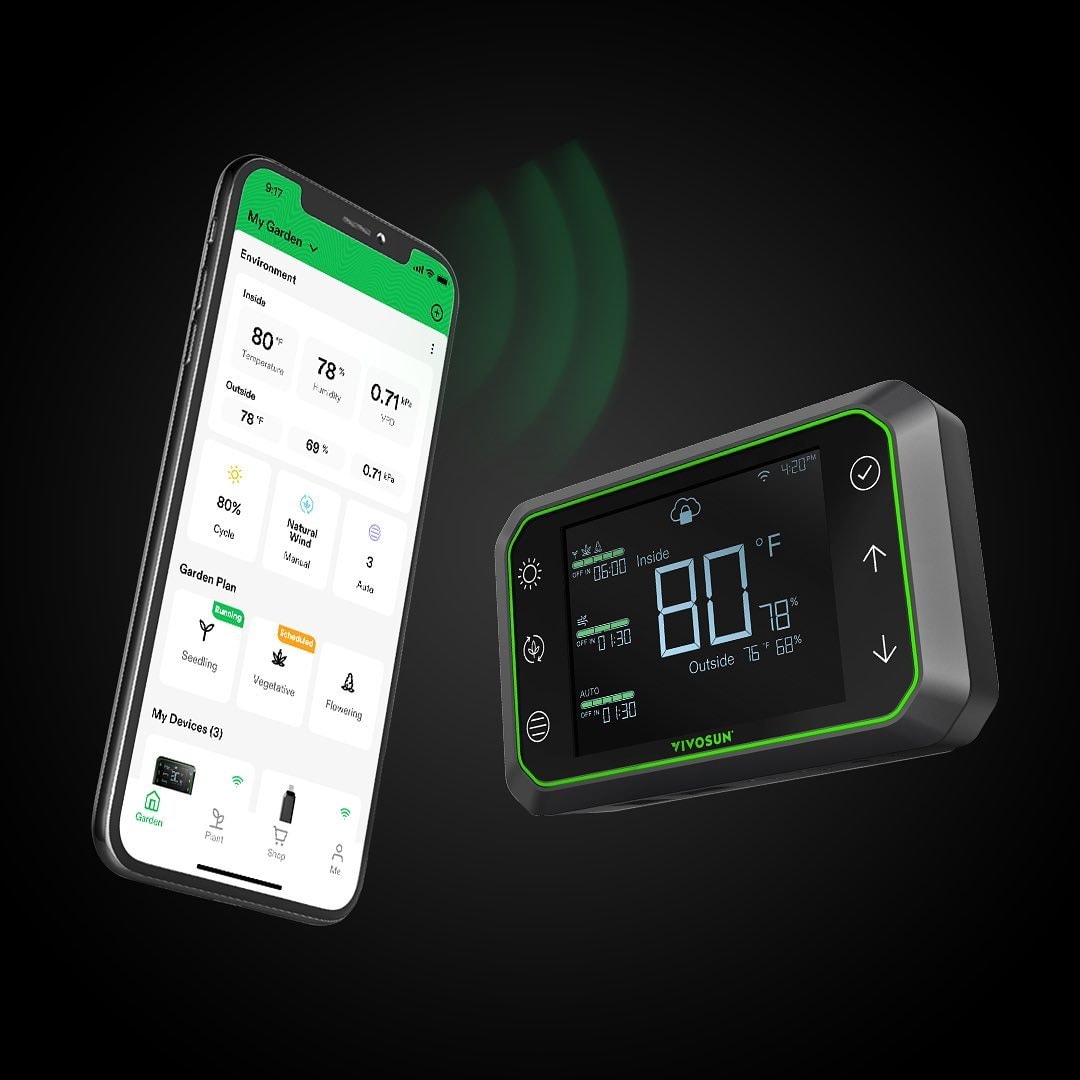
The VIVOSUN App connects to your GrowHub Controller so you can monitor and control your grow from anywhere with an internet connection, whether you're on the couch, visiting family, or traveling abroad. It also adds features the controller alone doesn't have, such as Grow Recipes, historical data, and alerts.
What You Can Do With the VIVOSUN App
- Monitor in real time. Check temperature, humidity, VPD, and the status of every device connected to your GrowHub. Live data refreshes every minute, and you can pull the page down to refresh it manually.
- Control remotely. Run lights, circulation fans, and duct fans in Manual mode, Cycle mode, or (for duct fans) with temperature and humidity triggers.
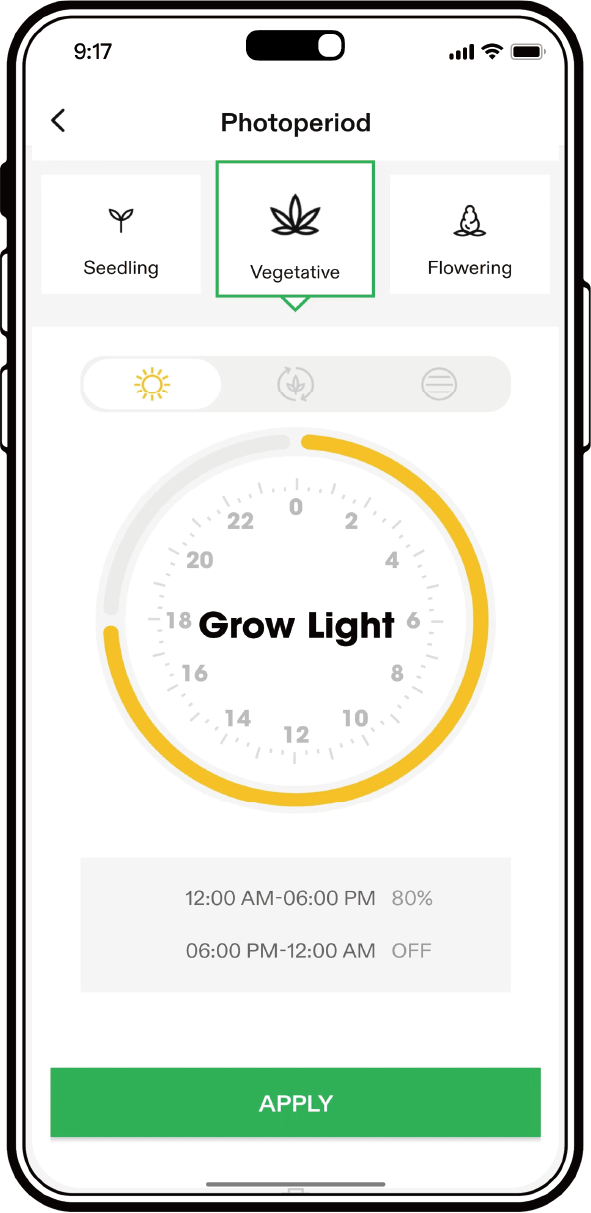
- Use Grow Recipes. Recipes set your lights, circulation fans, and duct fans for each growth stage. They're created by professional growers, so you just tap "Apply" and your setup does the rest.
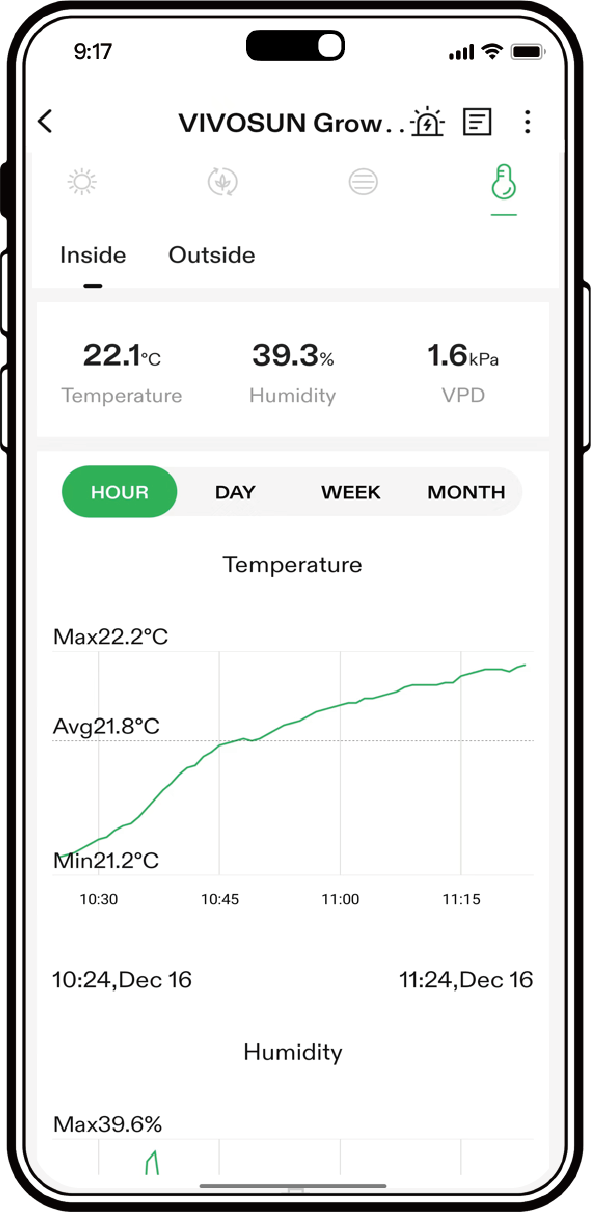
- Track your data. The app logs temperature, humidity, and VPD for your tent, plus running logs for every device, giving you the whole picture of what's happening in your tent. Up to one year of history is kept.
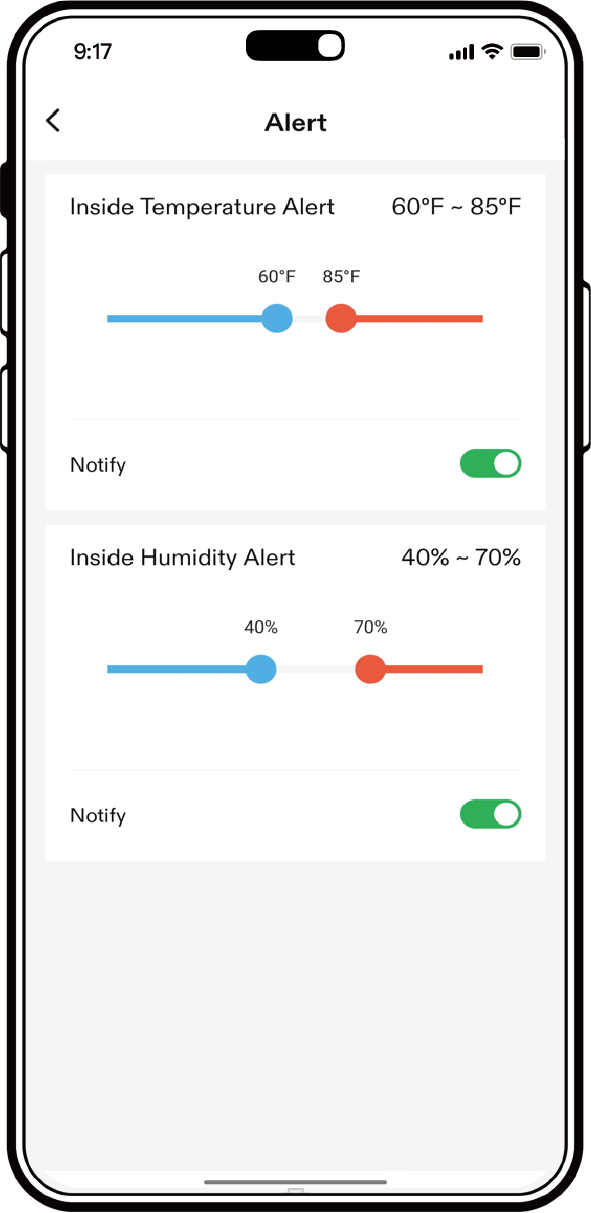
- Get alerts. Receive phone notifications when devices have an issue or when temperature or humidity leaves the range you set.
The app is free to download and use, works on iPhone, iPad, and Android phones and tablets, and connects through the cloud, so it works anywhere you have internet access.
Loading the App
Search for "VIVOSUN" in the Apple App Store or Google Play Store, or scan the QR code in the GrowHub Controller manual.
Syncing to the GrowHub Controller
Before you start:
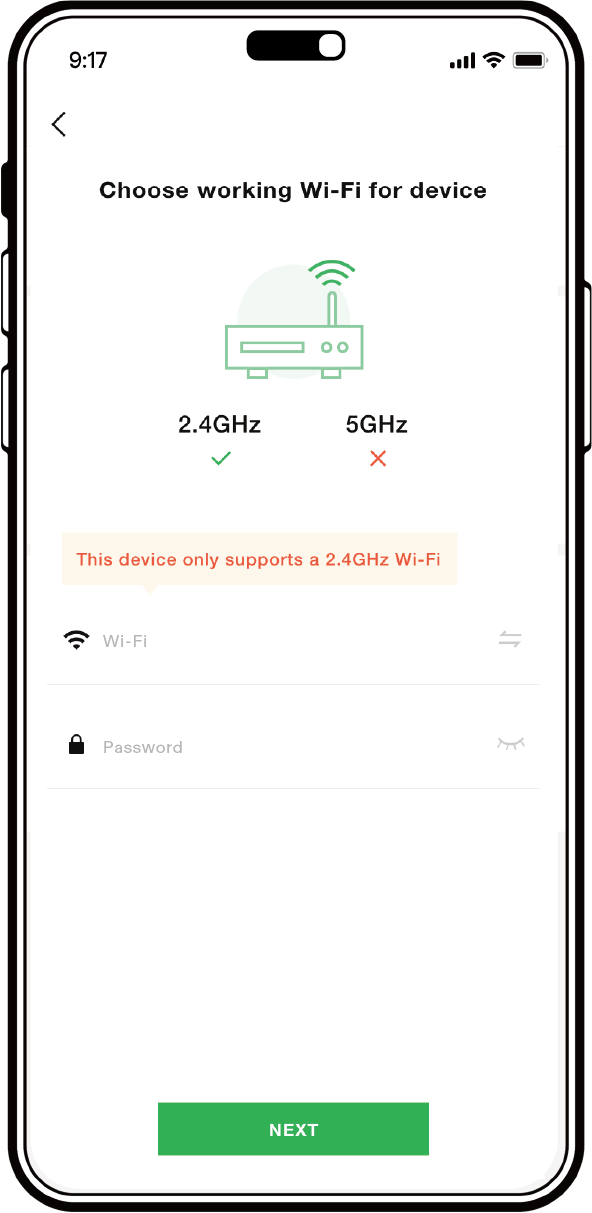
- Make sure your phone is connected to a 2.4GHz Wi-Fi network. GrowHub does not support 5GHz. If your router broadcasts both bands under one name, choose the 2.4GHz signal during pairing.
- Turn on Bluetooth on your phone.
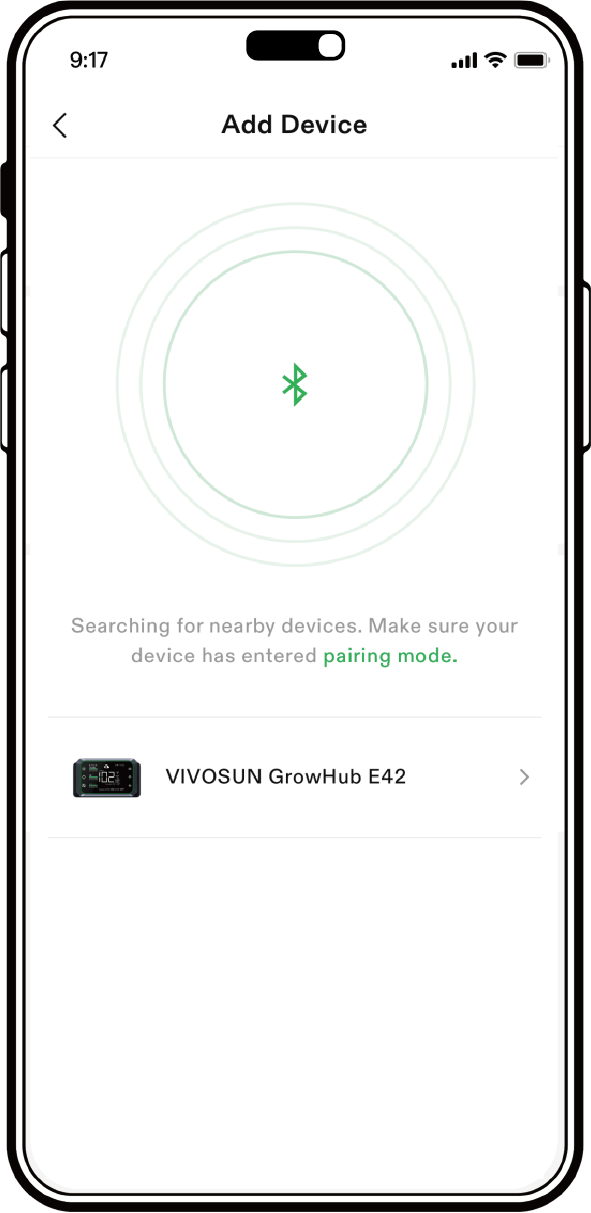
After downloading the app and registering, power up your GrowHub Controller, open the app, and tap + to add a device. While the controller is in pairing mode, the app will find it and walk you through setup.
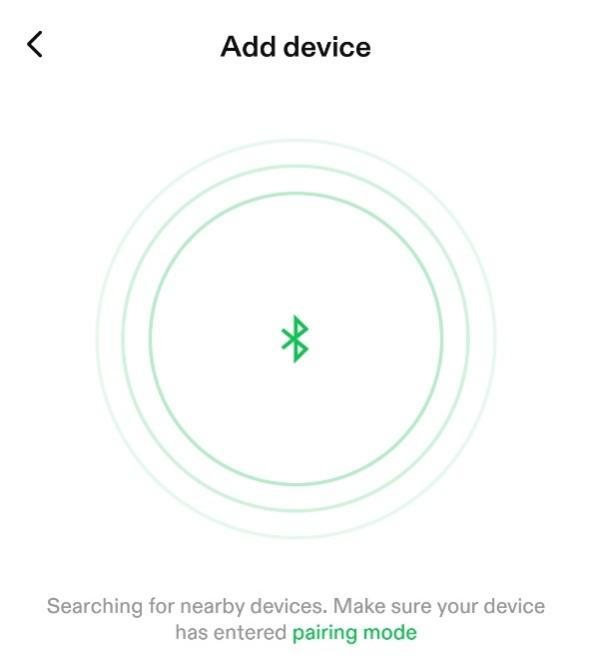
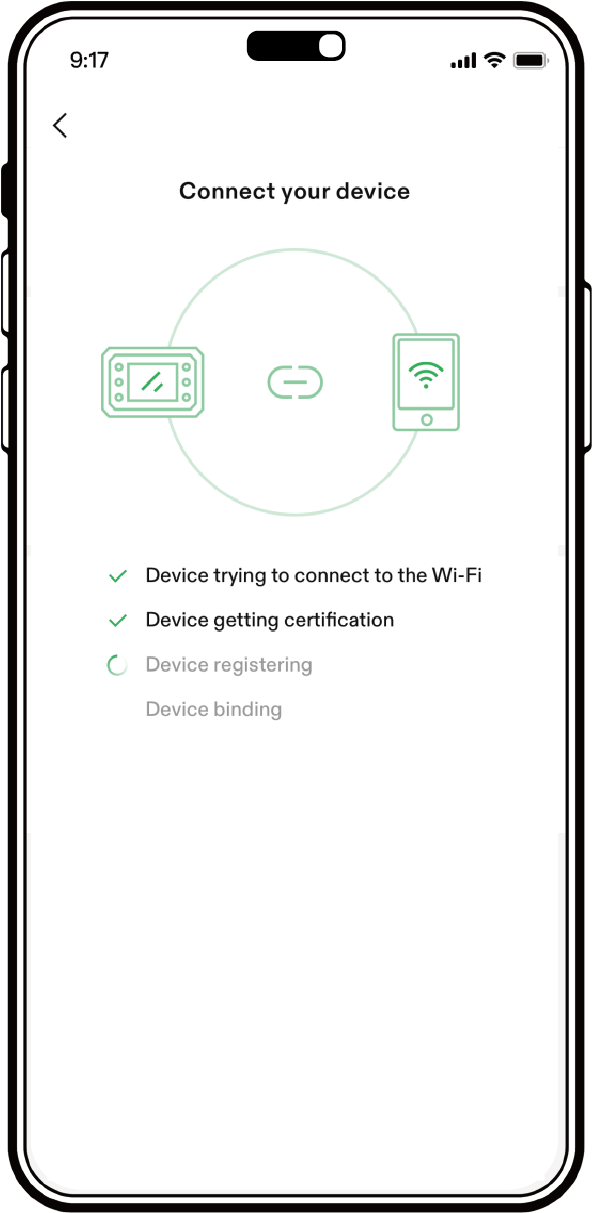
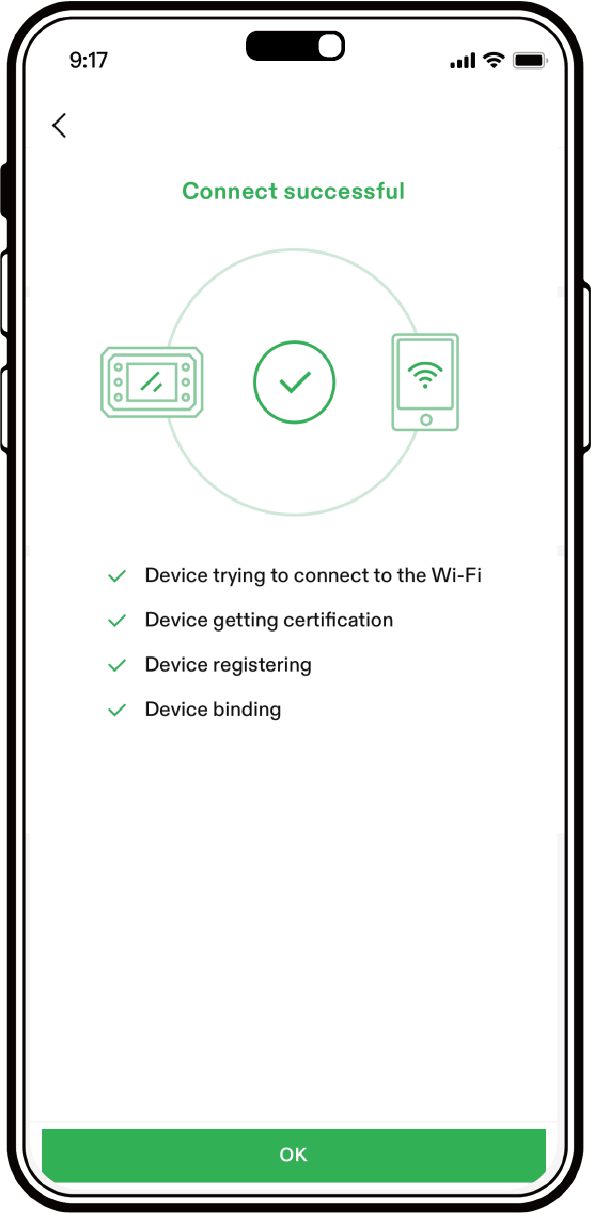
Follow the in-app pairing steps below.
| Step 1 | Step 2 |
|---|---|
 |  |
| Step 3 | Step 4 |
|---|---|
 |  |
If the controller can't be found or won't connect
- Confirm the network is 2.4GHz and the password is correct.
- Reset the controller: use a pin to press and hold the reset button until you hear a long beep, then release. This restores factory settings and clears the Wi-Fi configuration, after which you can pair again. The same reset lets you switch the controller to a different Wi-Fi network.
- If it still fails, email support@vivosun.com with the login email you use for the app.
Good to know
- Offline use: If Wi-Fi drops, the controller keeps running its last settings or Grow Recipe, and you can still operate it from the controller. The app can't show live data or control it until it reconnects, which happens automatically.
- Power outages: If the controller was connected to Wi-Fi and the app, it reconnects and resumes your settings on its own. If it was never connected, you'll need to reset the clock on the controller, and it will then resume its previous settings.
Garden Maintenance
You can manage multiple Gardens in the app. A Garden is an area controlled by one GrowHub Controller, from a single-light tent to a large room with several lights daisy-chained together.
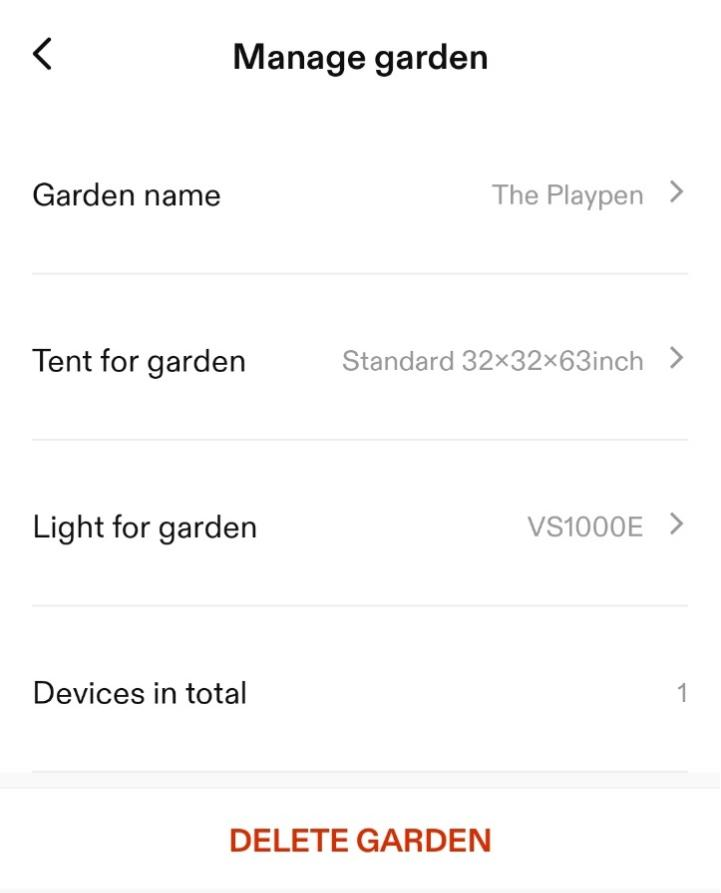
Adding a Garden: enter a Garden Name, choose the Tent, and choose the Light (or select Other).
Editing a Garden: change the name, light, or tent.
Deleting a Garden: remove it from your app.
The VIVOSUN Dashboard
The Dashboard opens with the app and shows everything about one garden.
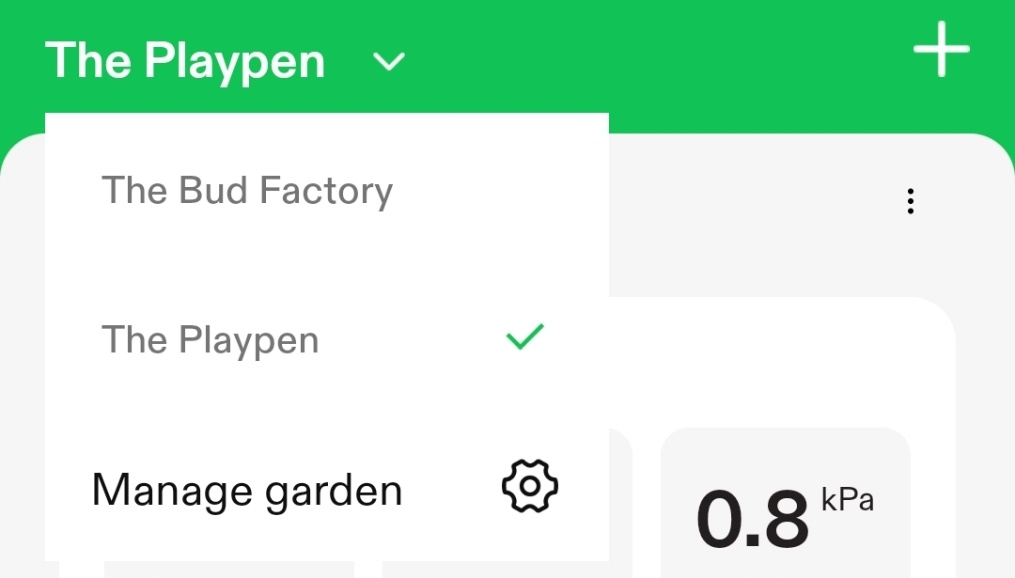
Managing Gardens
The garden name at top left shows which garden you're viewing. Tap it to switch or manage gardens.
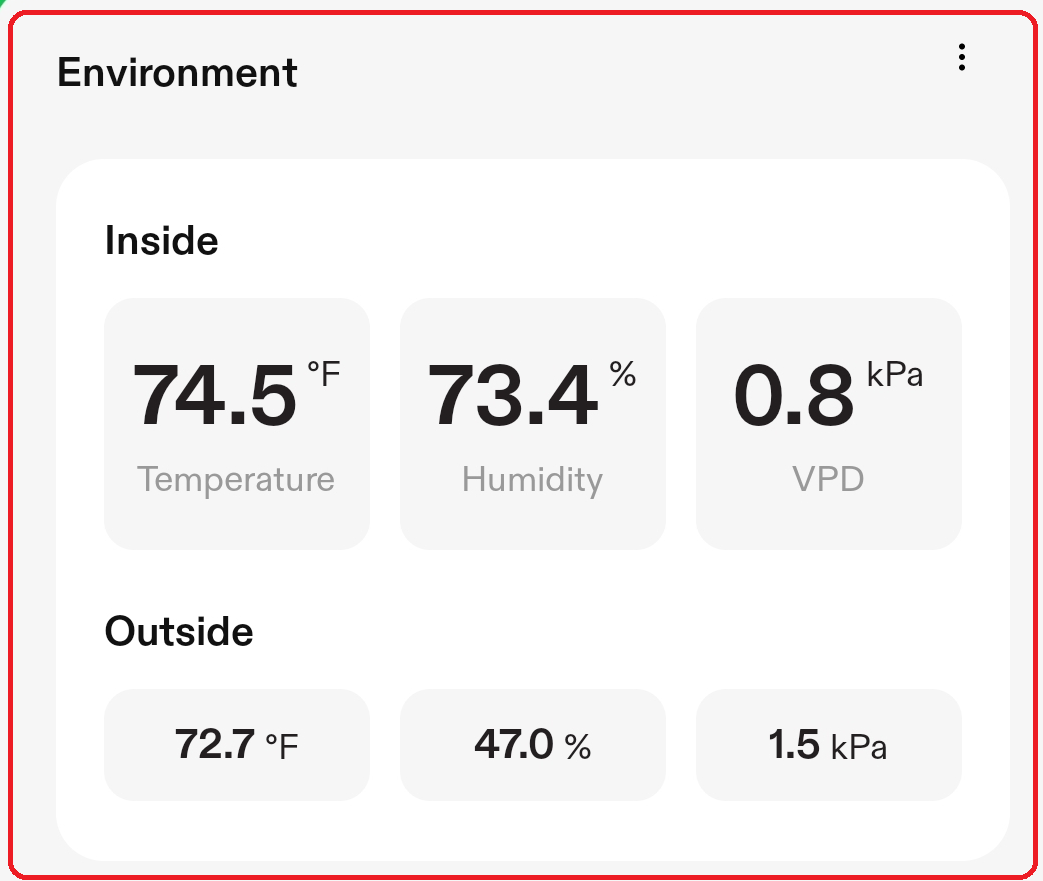
Environment Display
The top of the dashboard shows temperature, relative humidity, and VPD, both inside and outside your grow space. The sensor probe on the cable measures inside the tent, and the controller's built-in sensor measures outside.
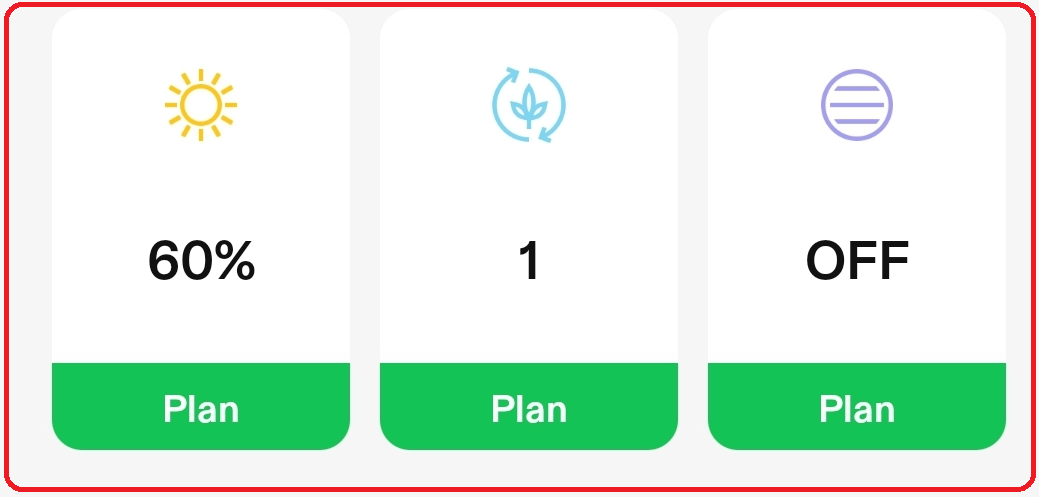
Component Display
This shows the status of connected devices (Light, Circulation Fan, and Duct Fan). The top of each card shows its current setting, for example light at 60%, circulation fan at speed 1, duct fan off. The green bar below shows the running mode: Manual, Cycle, Auto, or Recipe.
Recipe Display
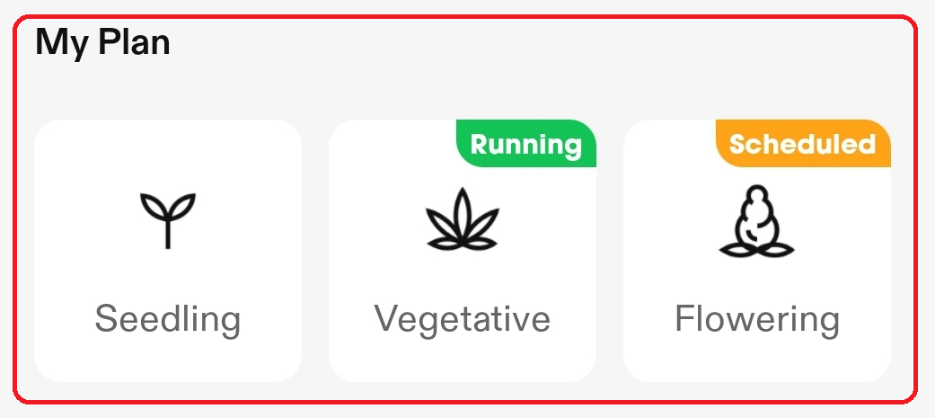
Shows any running recipe, which stage it's in, and any scheduled stages.
Attached Devices
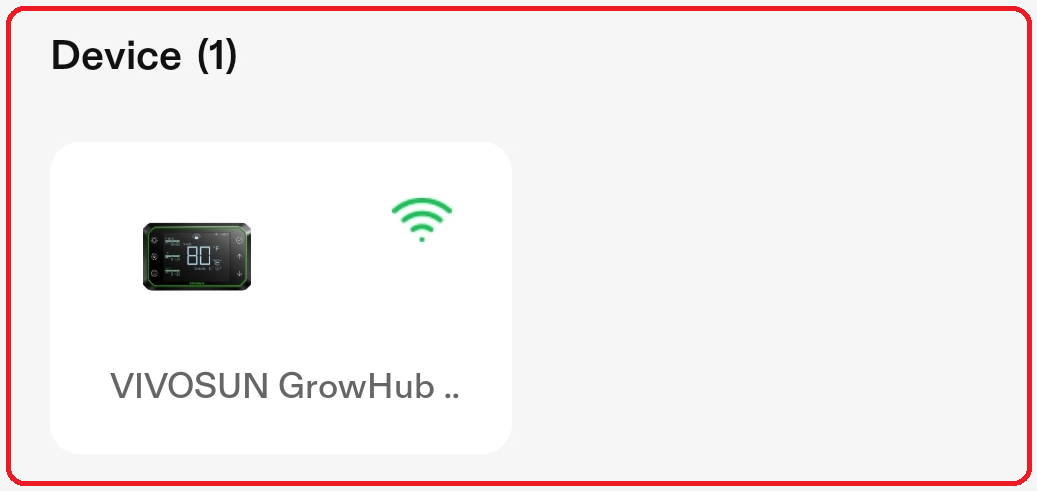
Lists all devices in this garden and whether each is connected.
Other Options

- Garden: manage your gardens
- Plant: keep plant diaries
- Shop: find and buy VIVOSUN gear
- Me: account setup, app version, report issues
Duct Fan Auto Mode in the App
You can set the high and low temperature and humidity triggers for the duct fan on the controller or in the app. In the app you can also choose what the fan does in standby: stay off or run at minimum speed. Once temperature or humidity passes a trigger, the fan turns on or speeds up, and the further past the trigger, the faster it runs.
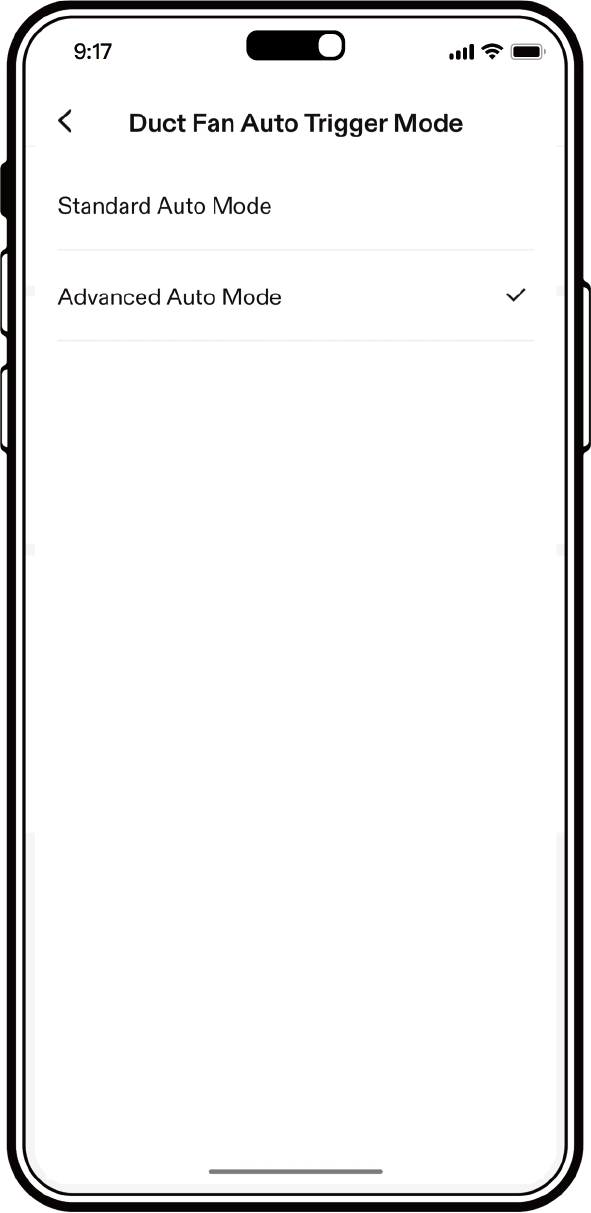
For Advanced Auto Mode, go to Settings > Additional Settings > Duct Fan Auto Trigger Mode. It also factors in the temperature and humidity outside your grow space and lets you set minimum and maximum values. If the outside air is worse than the inside, the fan won't speed up even when the inside is out of range, and the alert icon flashes to tell you the outside environment isn't suitable.
Recipe Mode and Manual Overrides
While a recipe is running, the controller shows a lock icon and its local buttons are locked so the recipe isn't interrupted. To make manual changes:
- In the app: stop the current recipe (Plan mode), then switch to Manual mode.
- On the controller: long press the Confirm button for 3 seconds on the main screen to unlock. Unlocking ends the running recipe.
If you have any questions, please don't hesitate to reach out to us, and be sure to check out our other blog posts for useful tips on becoming a great grower!